
Watch a task turn into earned screen time
Follow one real task from start to finish, on a real Android parent phone and a real iPhone child. Assigned, completed, approved, and the app unlocks. Every screen below is the real app, not a mockup.
Create a task, choose what it restricts
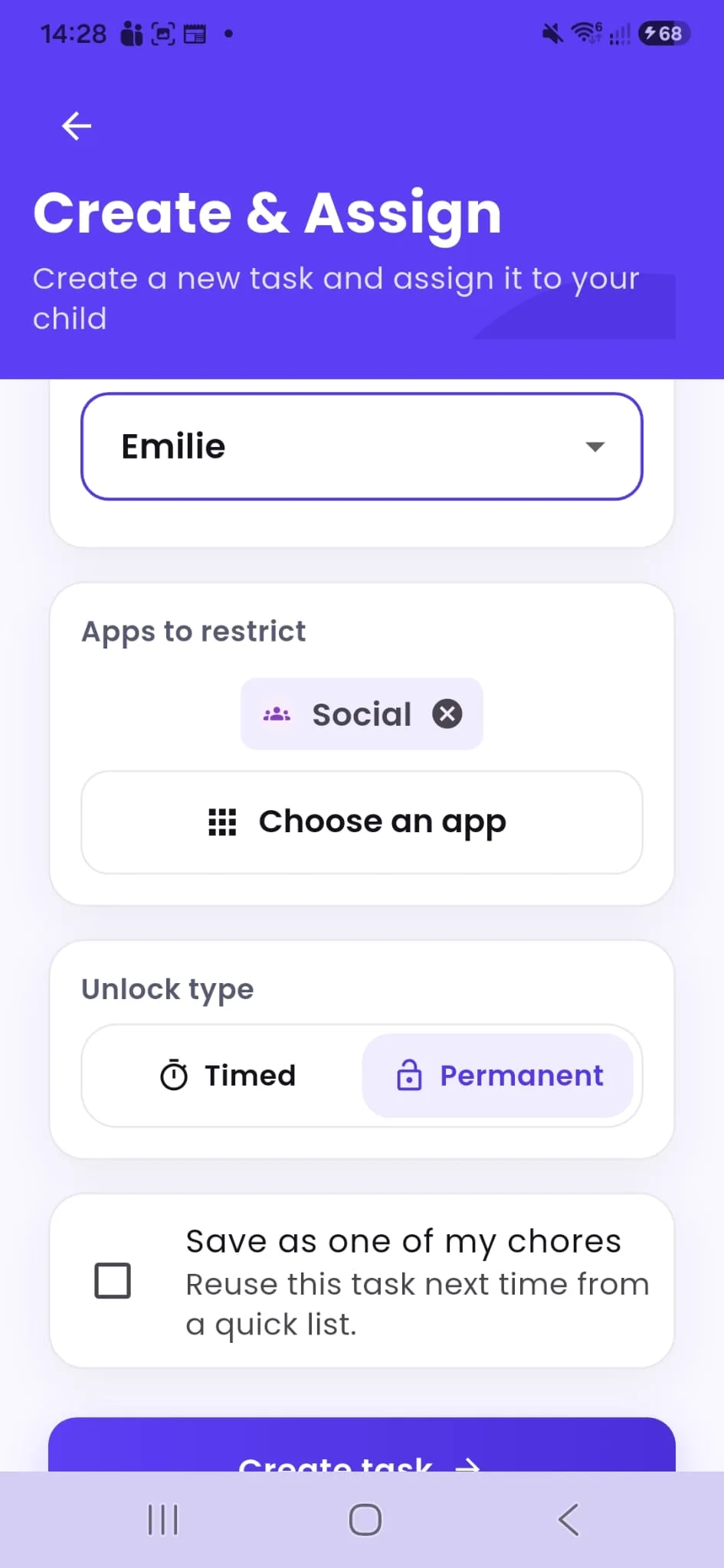
Add something that needs doing, assign it to your child, and pick exactly which app or category stays locked until it’s done, timed for a set reward period or permanent until the next task. Here, “Take Rubbish Out” is assigned to Emilie, restricting the whole Social category until it’s approved.
It shows up instantly on their iPhone
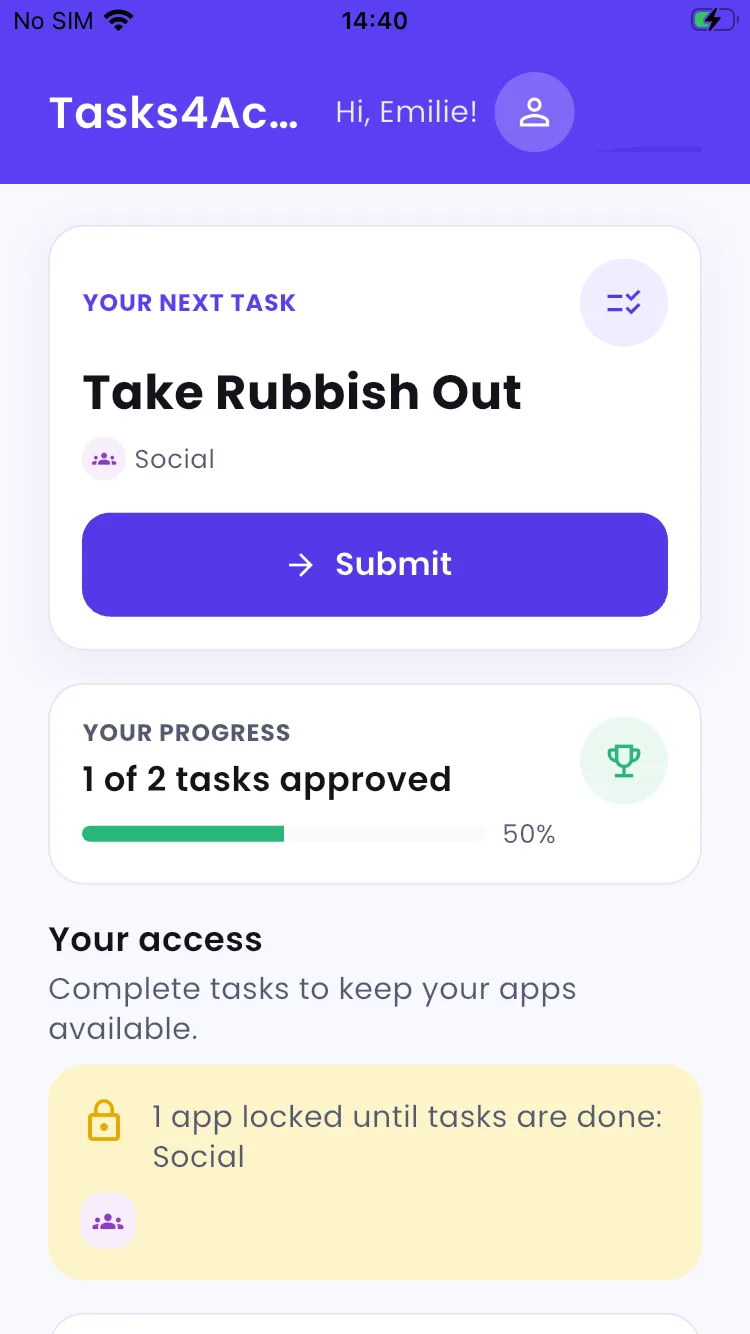
The moment a task is created, it appears on the child’s own device and the app or category it restricts locks right away. The parent’s Android and the child’s iPhone stay in sync automatically. Here, “Take Rubbish Out” is on Emilie’s to-do list and the whole Social category stays locked.
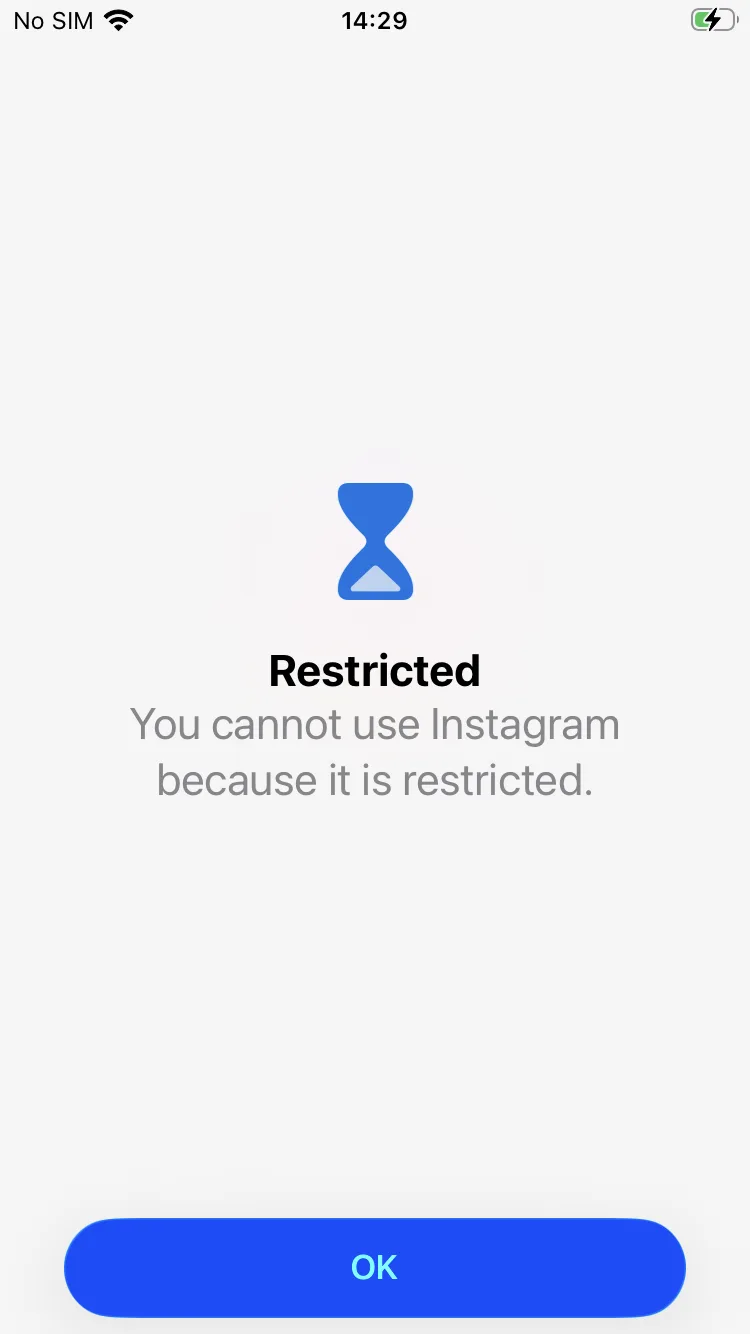 Trying to open a restricted app shows Apple’s own Screen Time shield.
Task done and submitted for review
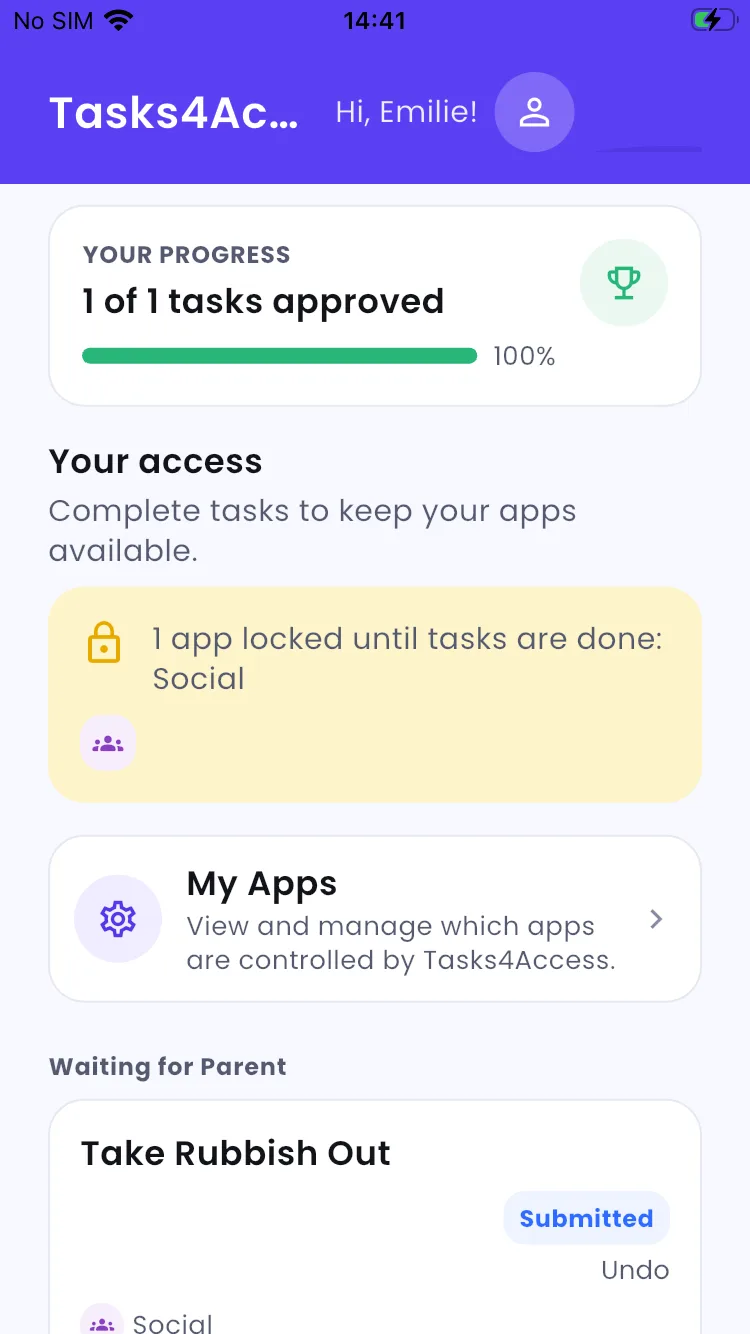
One tap marks it done and sends it for review, right from the child’s iPhone. “Take Rubbish Out” now shows “Submitted”, with an Undo option in case of a mistake, and a badge quietly appears on the parent’s Android Approvals tab.
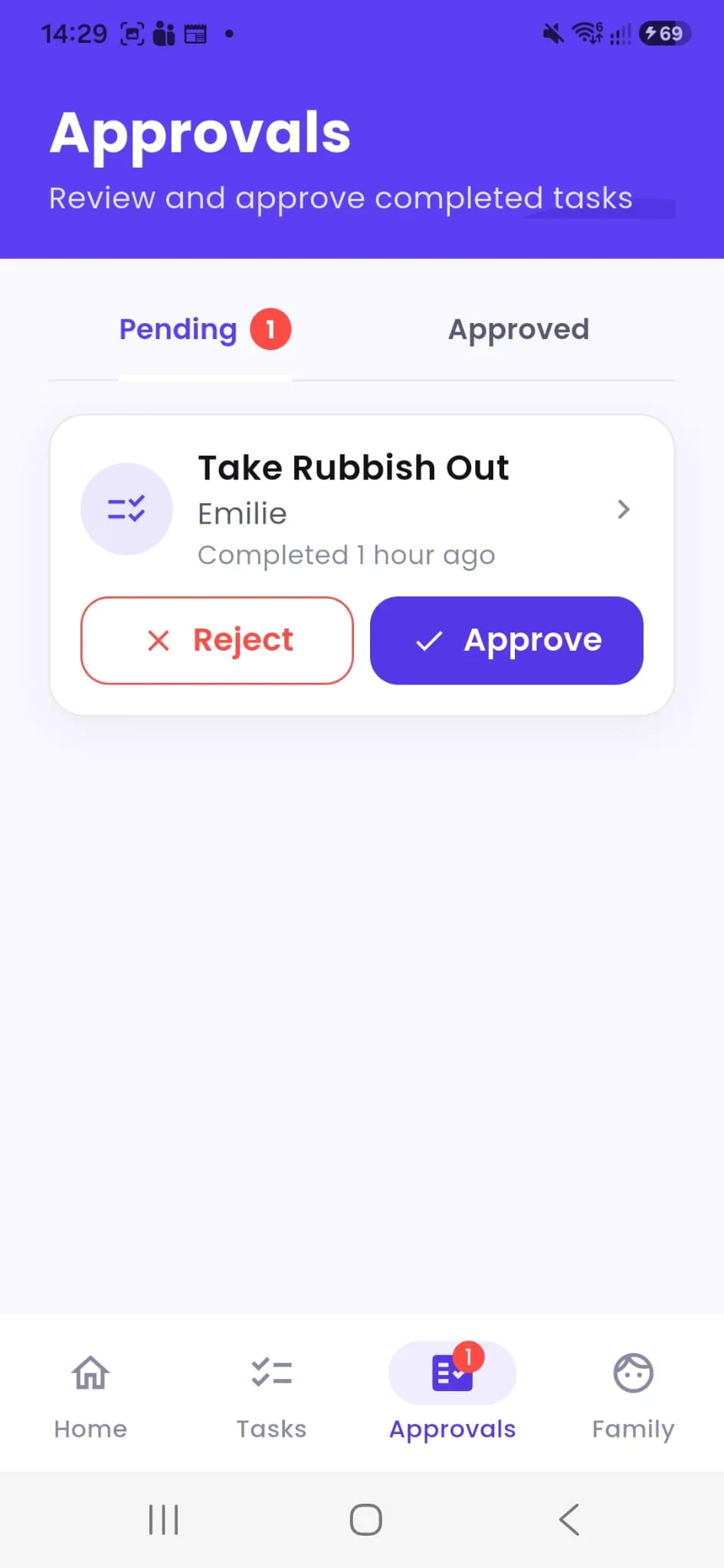
The parent sees it’s ready for review
A badge on the Android app’s Approvals tab shows exactly how many tasks are waiting, with the child’s name and which app or category it configures, with nothing to dig for.
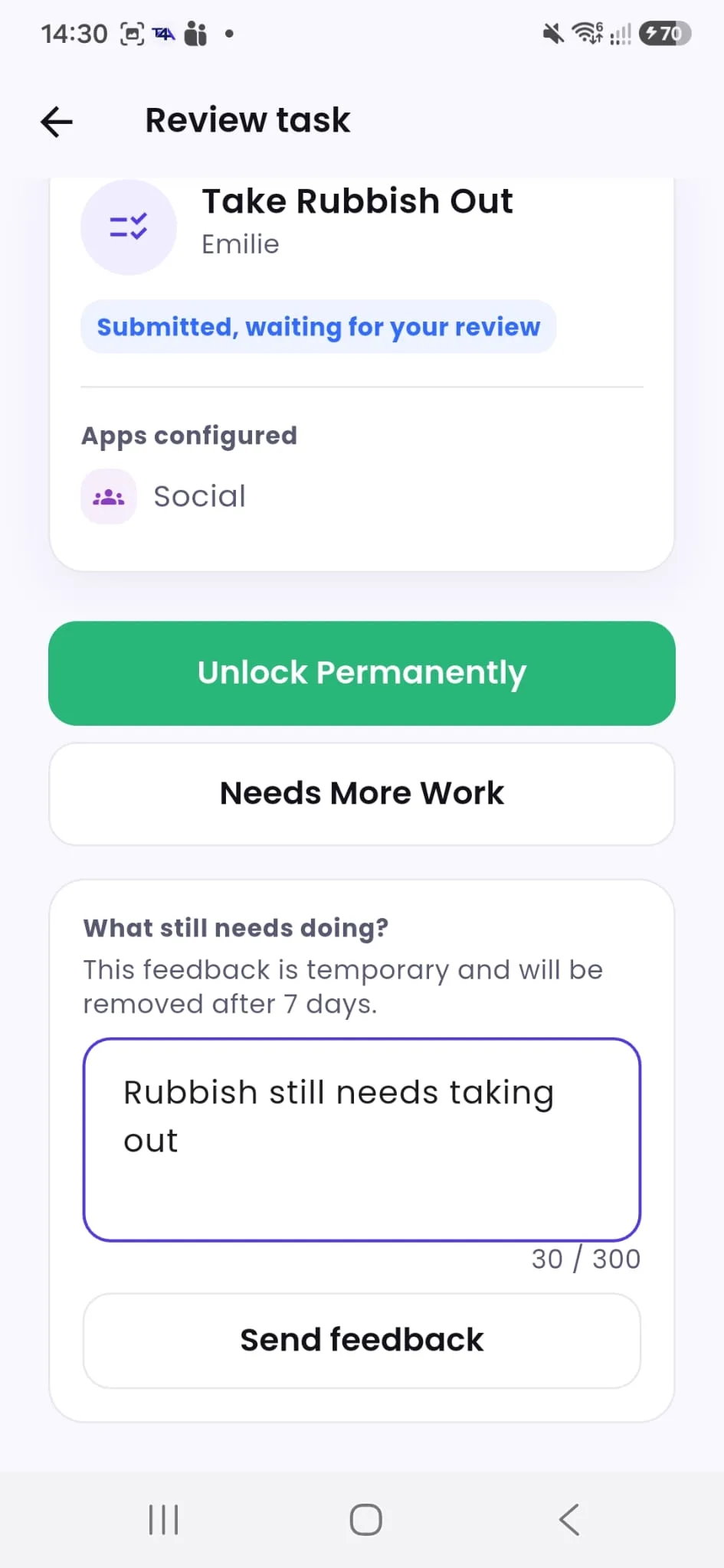
Approve it, or send it back with a note
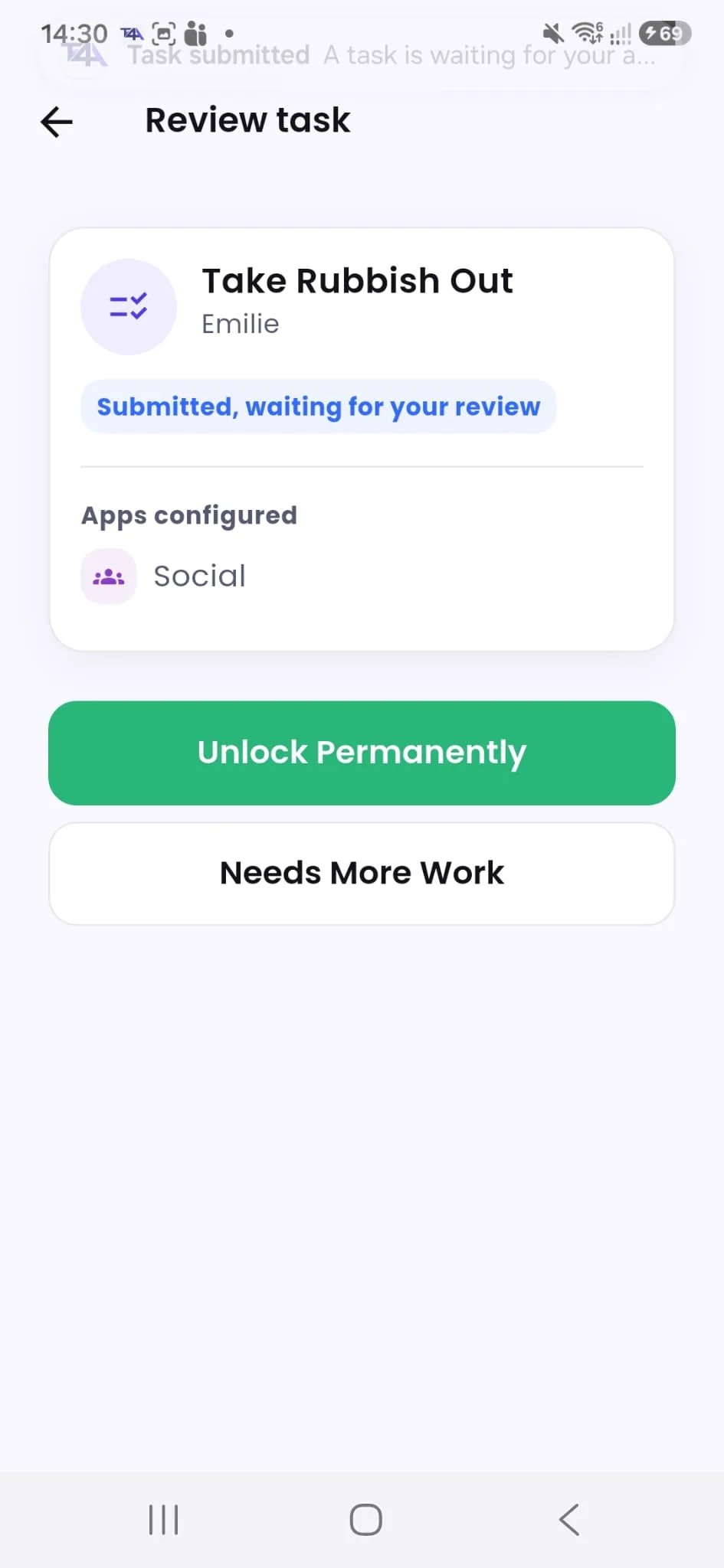
One tap unlocks the app or category for the reward period chosen when the task was created. If it’s not quite right, “Needs More Work” sends a short private note instead (up to 300 characters, automatically removed after 7 days).
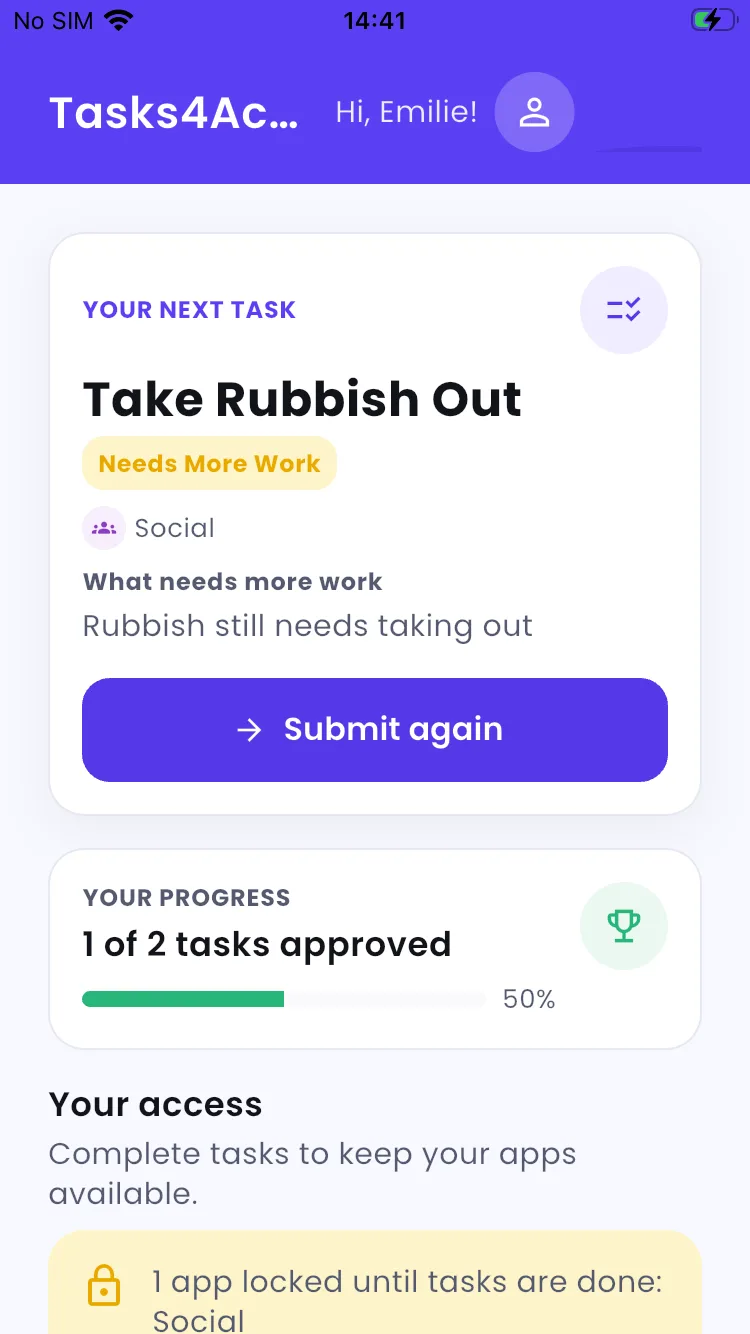
The same task reopens on the child’s iPhone with the parent’s note attached (“Rubbish still needs taking out”) and a “Submit again” button. No new task is created, and no one else ever sees the note.
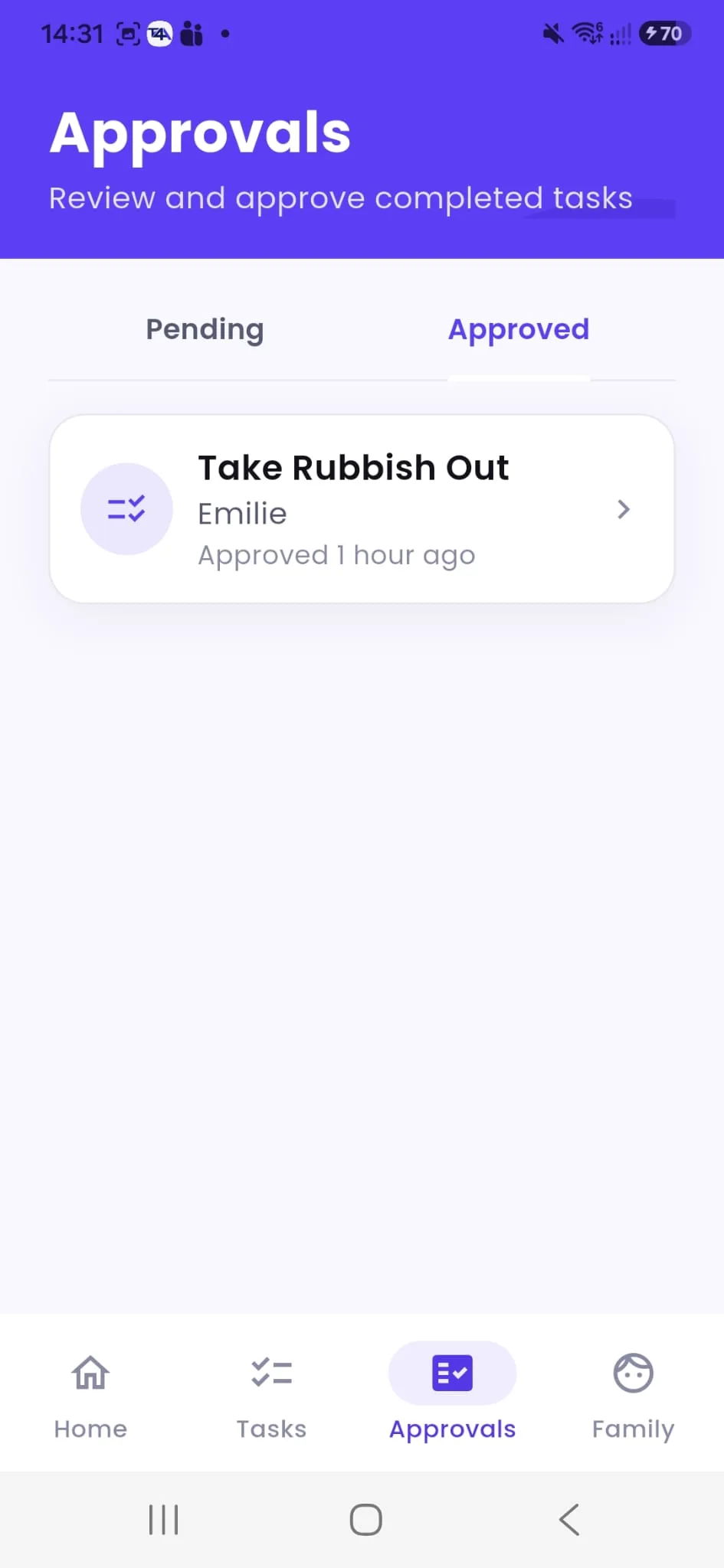
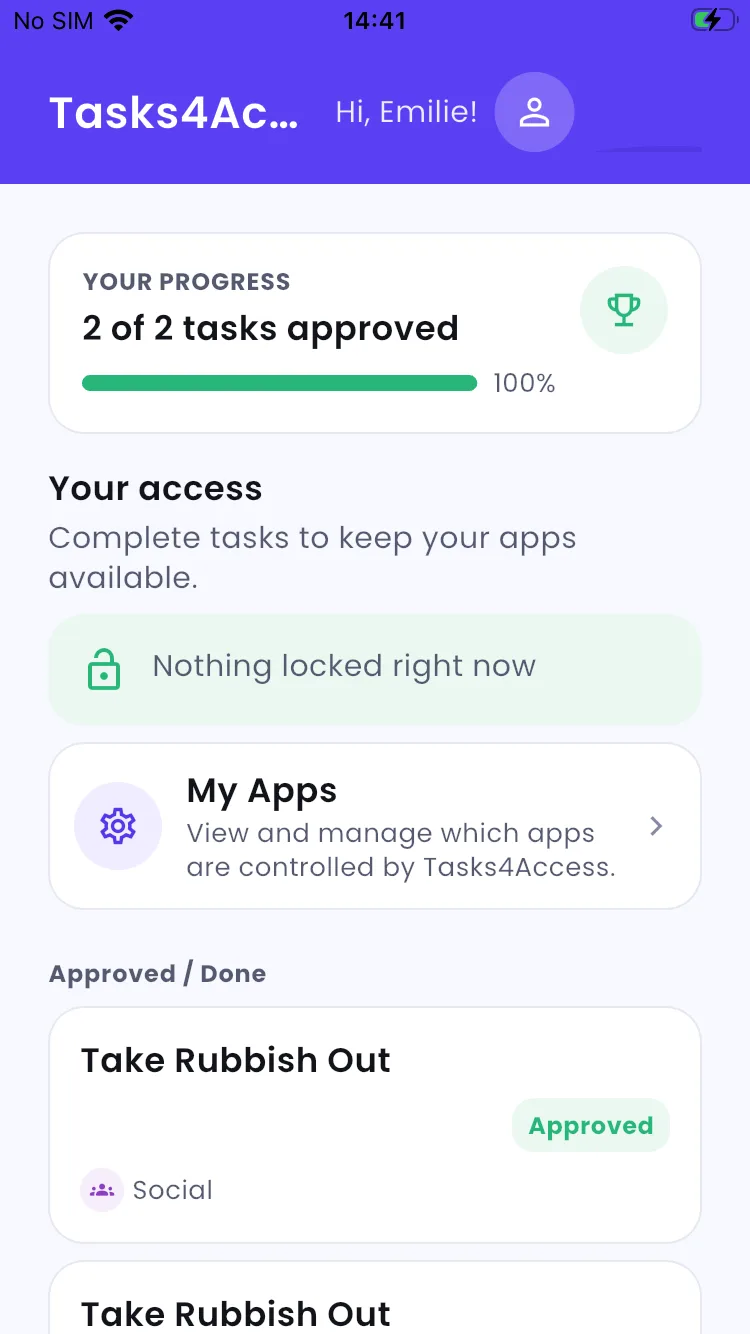
Approved, and the app unlocks
The Android app confirms it’s approved, and the child’s iPhone shows “Nothing locked right now” straight away. Access is earned, not assumed, and the whole loop starts again with the next task.
Setting up takes a few minutes
A quick, clearly-explained permission on the child’s own device, an optional PIN to stop apps being removed to dodge a restriction, then every child and device shows up on one parent dashboard.
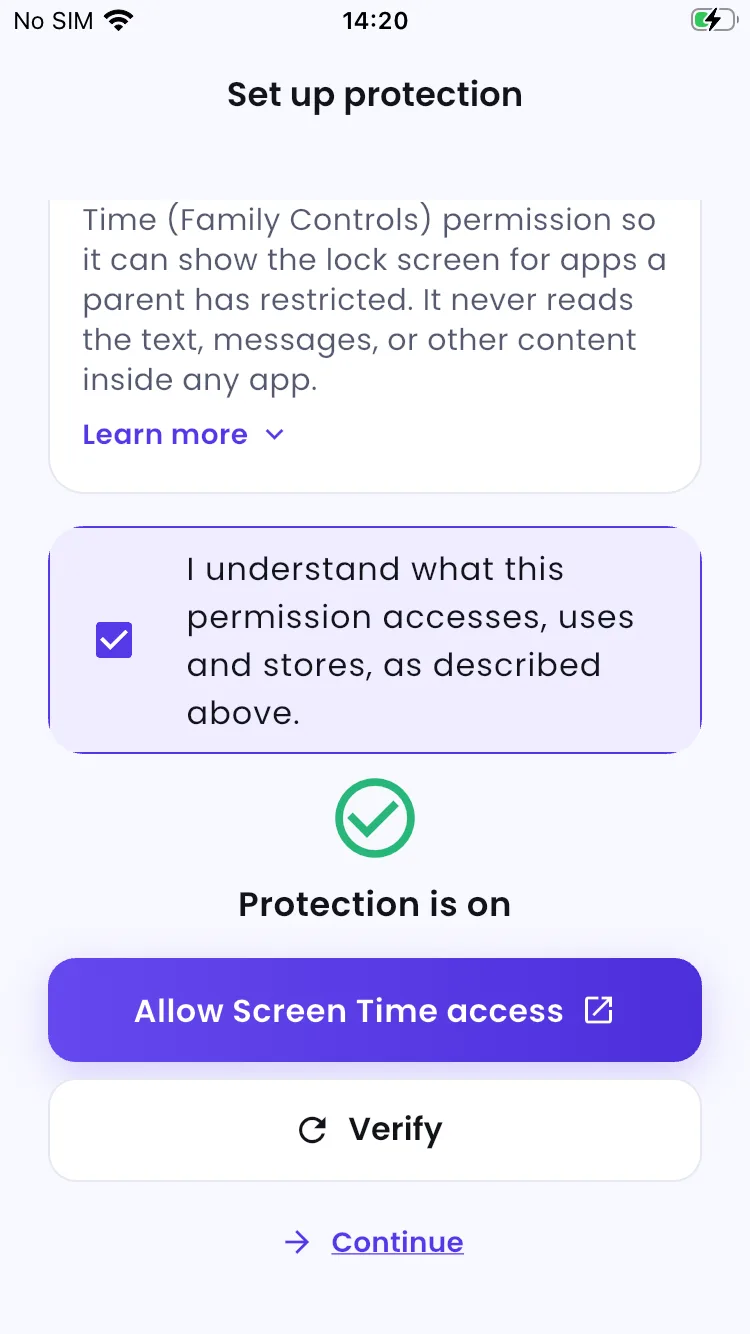
Turn on protection, on the child’s own device
Tasks4Access explains exactly what its Screen Time permission does before it’s confirmed, and never reads what’s inside any app. Once granted, “Protection is on.”
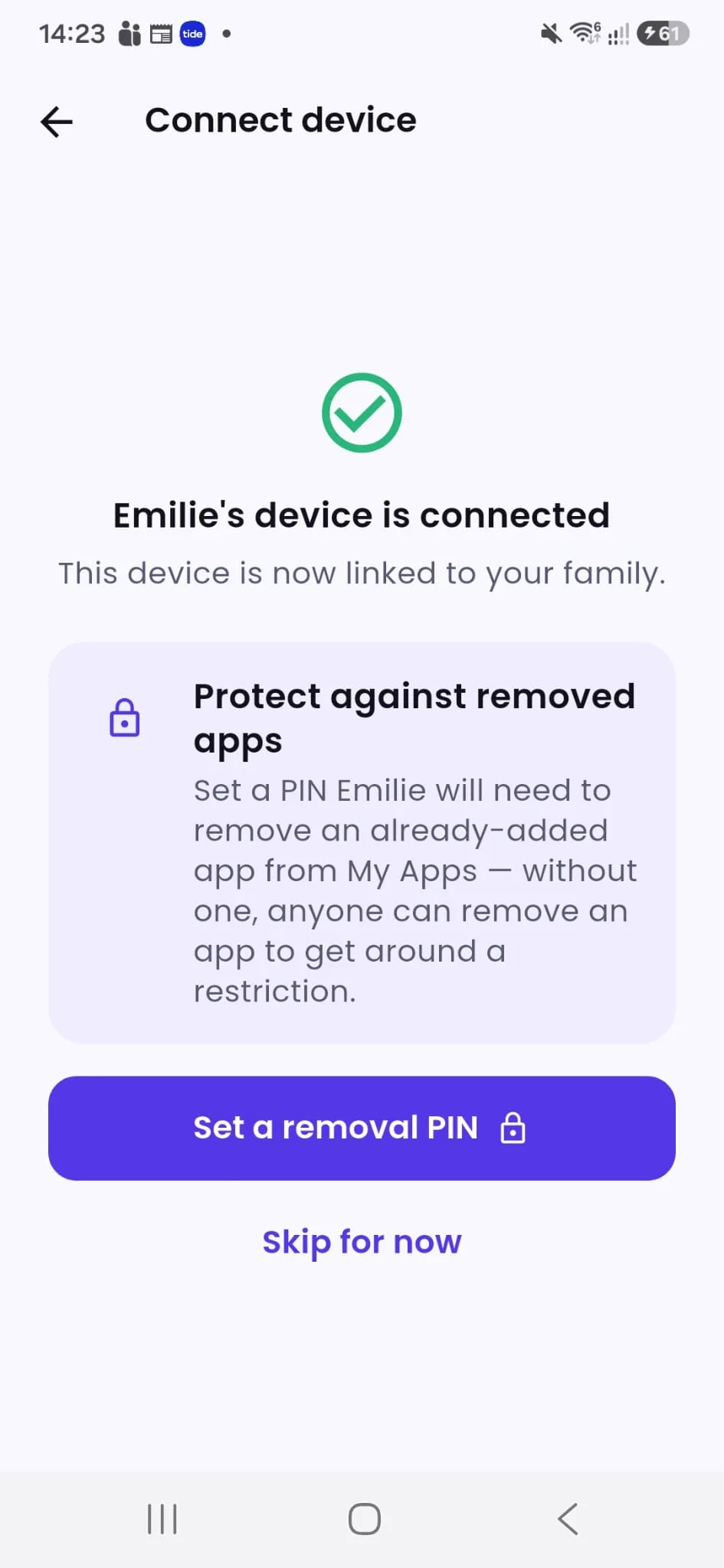
Connected, and protected against removed apps
The moment the child’s device connects, the parent’s Android app confirms it. An optional PIN stops a child removing an already-added app to dodge a restriction. Without one, anyone could.
One dashboard for the whole family
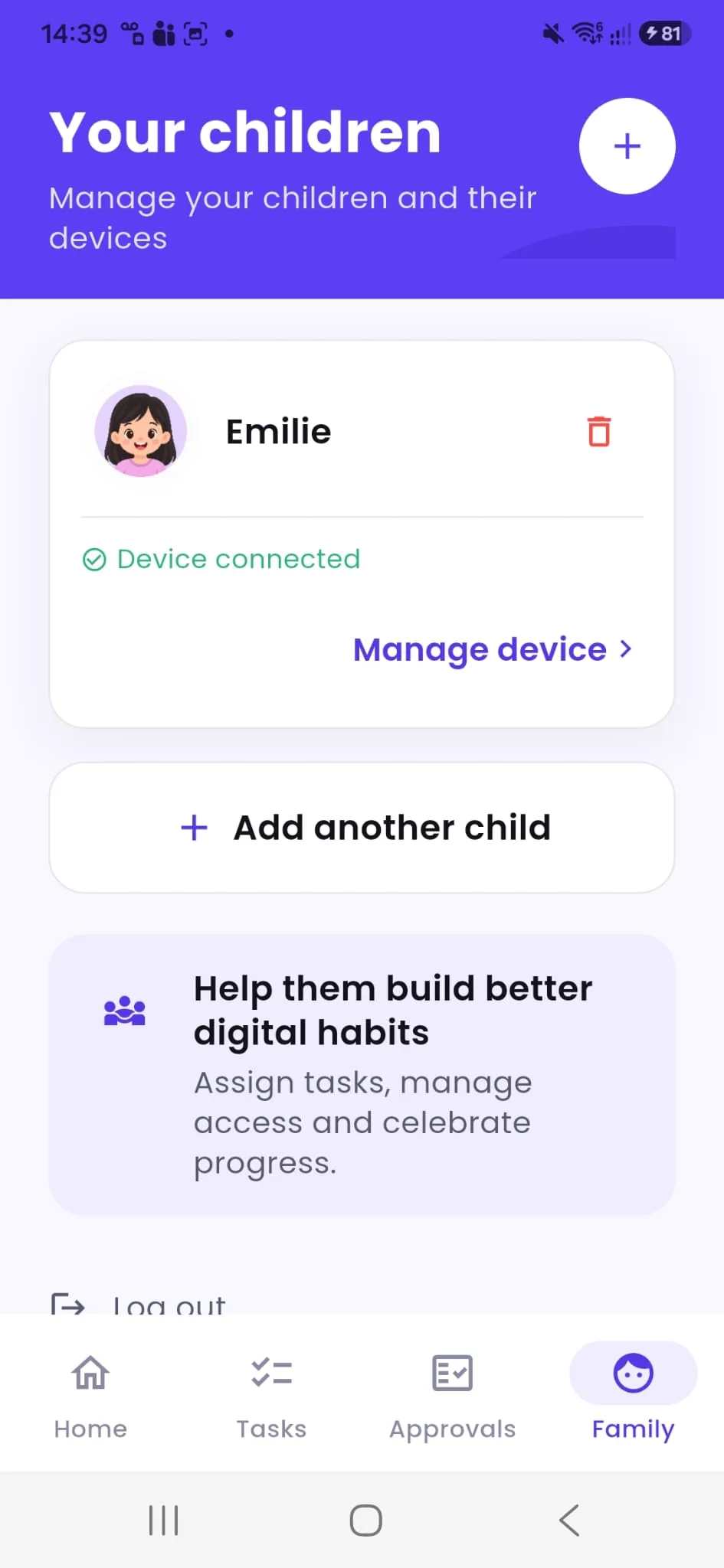
Every connected child shows up here, with a clear “Device connected” status. Add another child, or manage a device’s settings, from the same screen.
There’s more to Tasks4Access
A few more real, currently-available capabilities worth knowing about.
More than one child
Every child in the family gets their own tasks, apps and devices on the same account.
Reusable chores
Save a task once as a chore, then reuse it in seconds instead of typing it out again.
Exception apps (iPhone)
Keep essentials like Messages or FaceTime always usable, even when a whole category is restricted.
Android and iPhone, together
You just watched it above: a parent on Android and a child on iPhone (or any other combination) works exactly the same way. The family isn’t locked into matching devices.
Want the full picture?
See how it works, step by step · Explore every feature · Read how families use it