
Set up an iPhone child
This guide is for when your child’s device is an iPhone. It works whether you, the parent, use Android or iPhone yourself. The parent app looks and works the same on either platform.
Setting up an Android child instead? See the Android setup guide.
iPhone setup steps
Add your child
From the parent app’s Home screen, tap + Add Child. Enter your child’s name and pick an avatar, then tap Add Child.

Get a pairing code
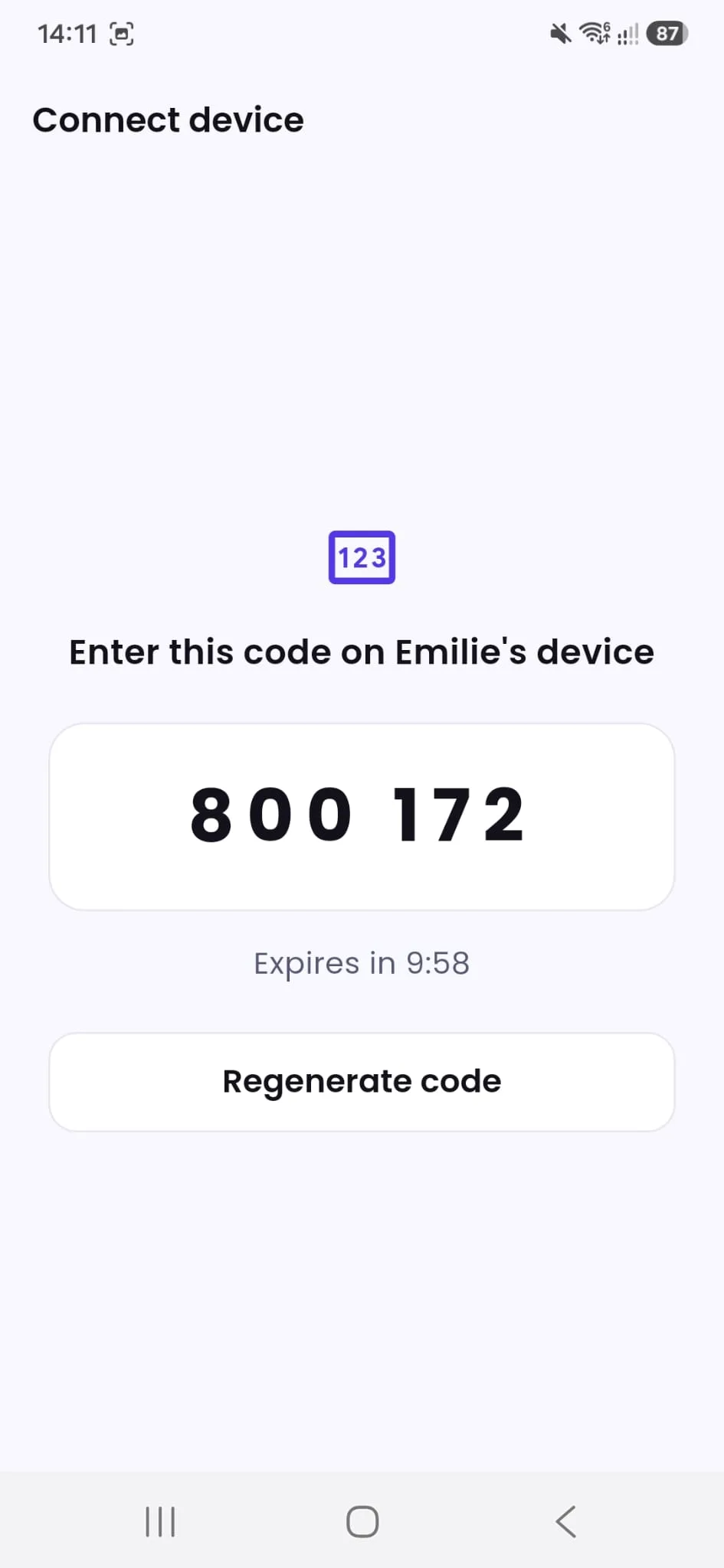
The Connect device screen shows a 6-digit pairing code. You’ll enter this on your child’s iPhone in the next step.
Connect your child’s device
On your child’s own iPhone, install Tasks4Access and open it. On the first screen, tap the Connect this device tile, then tap Continue, enter the 6-digit pairing code from step 2, and tap Connect.

Set a removal PIN (optional)
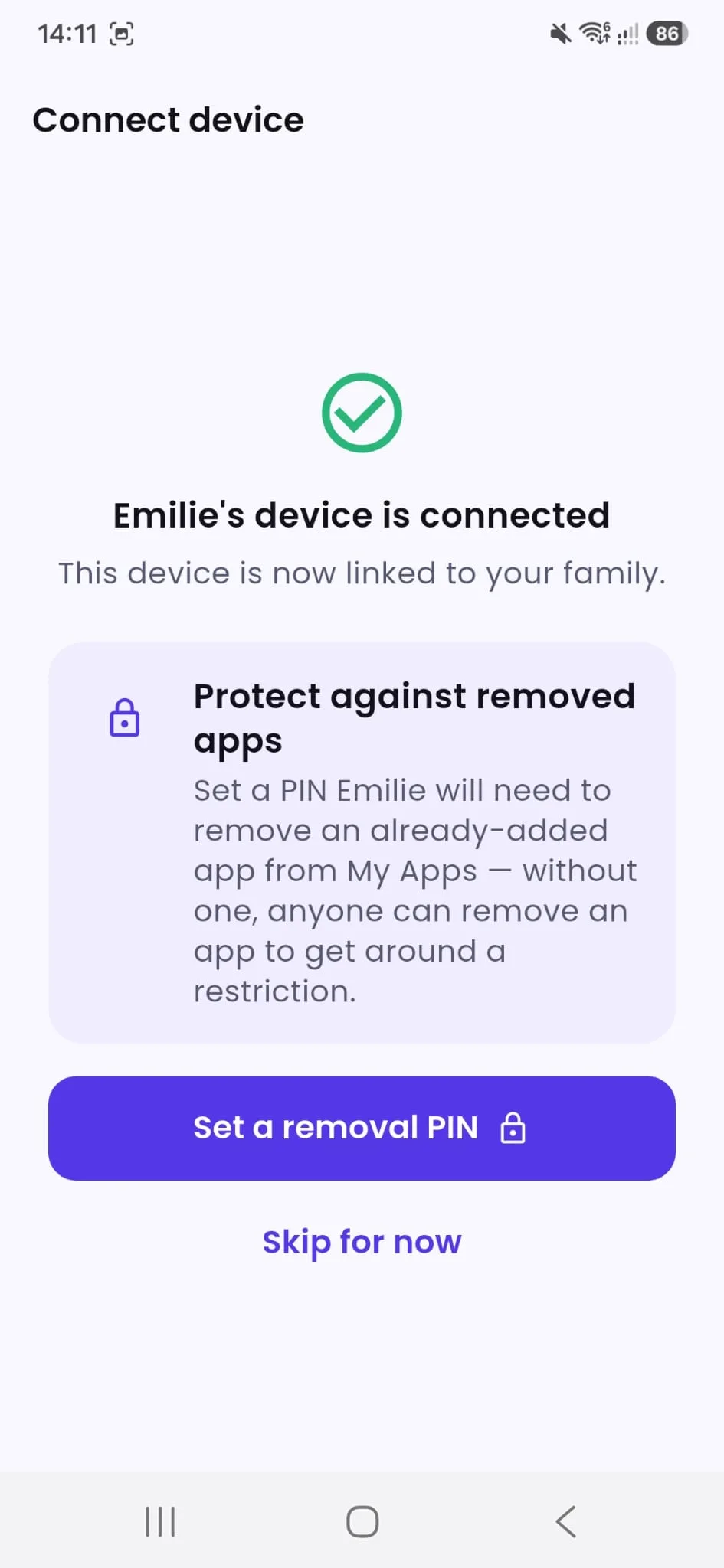
Because your child’s device is iOS, your own parent screen offers one extra step here: an optional PIN your child will need to remove an app from “My Apps” later, so they can’t quietly undo a restriction. Tap Set a removal PIN, or Skip for now; you can add one later from device management.

Turn on protection
Your child’s device explains how Tasks4Access works, then reaches Set up protection. This asks for Apple’s Screen Time (Family Controls) permission, used to show a lock screen for restricted apps. It never reads message content.
Tick the confirmation checkbox, then tap Allow Screen Time access to grant it through Apple’s own prompt.
Keep this switched on. Locking only works while Tasks4Access has Screen Time access. If it is ever switched off on your child’s iPhone (Settings, Screen Time, Apps with Screen Time Access), apps stop being locked, even though the ones you chose still show as chosen. Switch it back on, or open Tasks4Access and tap Allow Screen Time access again, and your dashboard will show protection as on once the iPhone has reported in.
If one app will not lock, check Apple’s own list on your child’s iPhone (Settings, Screen Time, Always Allowed). An app on that list will not lock (we saw TikTok stay open until it was taken off). Take it off the list, then open Tasks4Access on that iPhone for a minute and try again.

Your child chooses the apps that are never locked
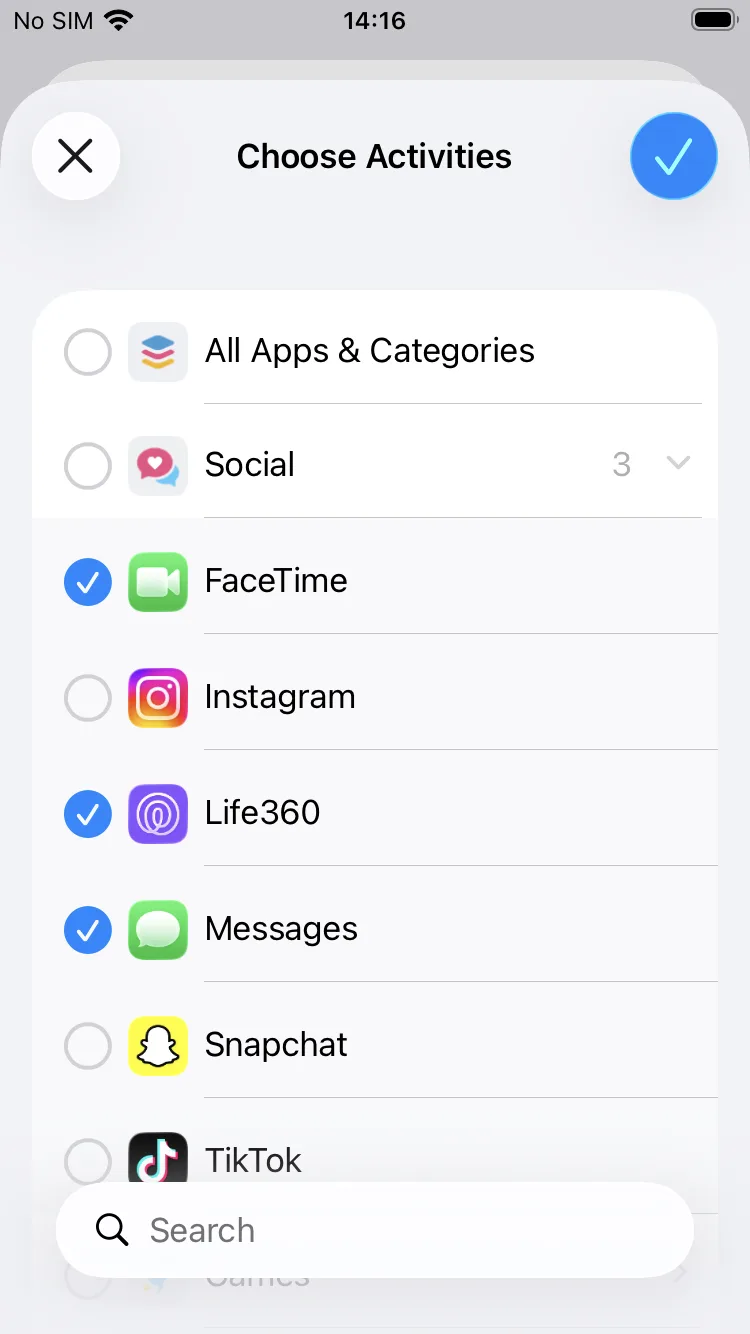
From your child’s Home screen, they open My Apps. Step 1 of 2 is “Choose the apps you never want locked”. These stay open all the time, even when a task locks other apps. Good examples are Life360, Messages and FaceTime.
They tap Choose apps and pick single apps in Apple’s own picker. A whole group like “Social” cannot be a never-locked app. If there are none, this step can be skipped. Then they tap Next.
You can also tap Always allow under an app when you create a task in the parent app, and that app shows on your child’s phone as “Never locked (set by your parent)”; only you can change those.


Your child chooses the apps that can be locked
Step 2 of 2 is “Choose the apps that can be locked”. Your parent picks from these when they set a task, for example Snapchat, Instagram or games. Your child can pick single apps or whole groups like “Games”, then types a name for each one, because Apple doesn’t let Tasks4Access see app names. Your parent finds them by those names.
Your child taps Submit. An optional Help prevent app deletion link explains how to use Apple’s Screen Time settings to stop your child deleting Tasks4Access. It also stops the deletion of other apps, so read it before turning it on.


Choose which apps to actually restrict
Back in the parent app, open Create & Assign, choose your child, and pick from the apps they’ve added to “My Apps” under Apps to restrict. Choose Timed or Permanent, then tap Create task.

What your child sees
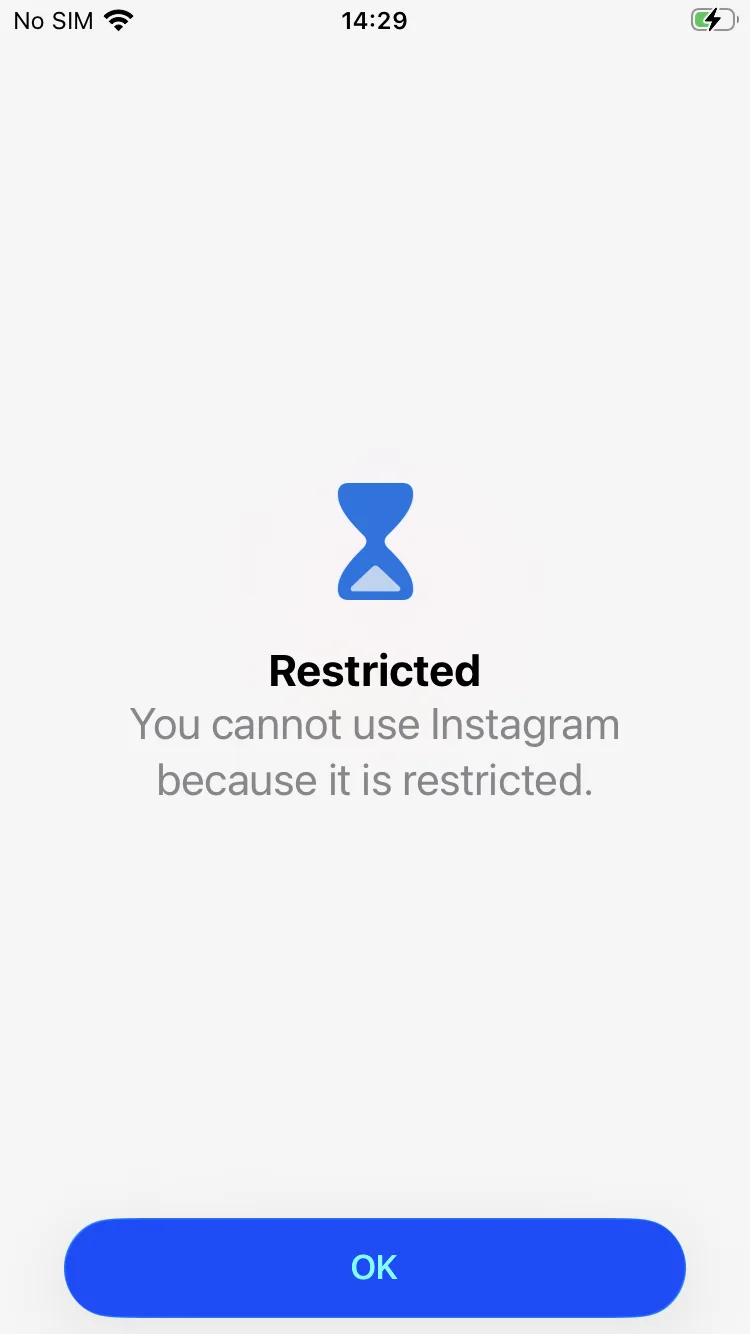
If your child opens a restricted app before the task is done, Apple’s own Screen Time shield shows in its place.
Your child submits the task
Once the task is done, your child taps Submit on their task card. They can optionally attach a photo, or tap Submit without a photo.

Review and approve
In the parent app, open Approvals, tap the submitted task, then tap Unlock Permanently (or the timed equivalent) to approve it, or Needs More Work to send it back with a short note.

The app unlocks
As soon as you approve, the app or apps that task restricted become available on your child’s device, with no extra step on their end.

Need something else?
See how the full journey looks in the app walkthrough, check the FAQ for quick answers, or head back to Setup & Help.